Using Greatbook
Seven tabs along the top: Setup, Grades, Benchmarks, Behaviors, Contacts, Trends and Reports. You will spend nearly all your time in Grades.
Every tab has a question mark that explains that tab, and Settings has the whole tour.
Setup
This is where you describe a class, once, at the start of the year.
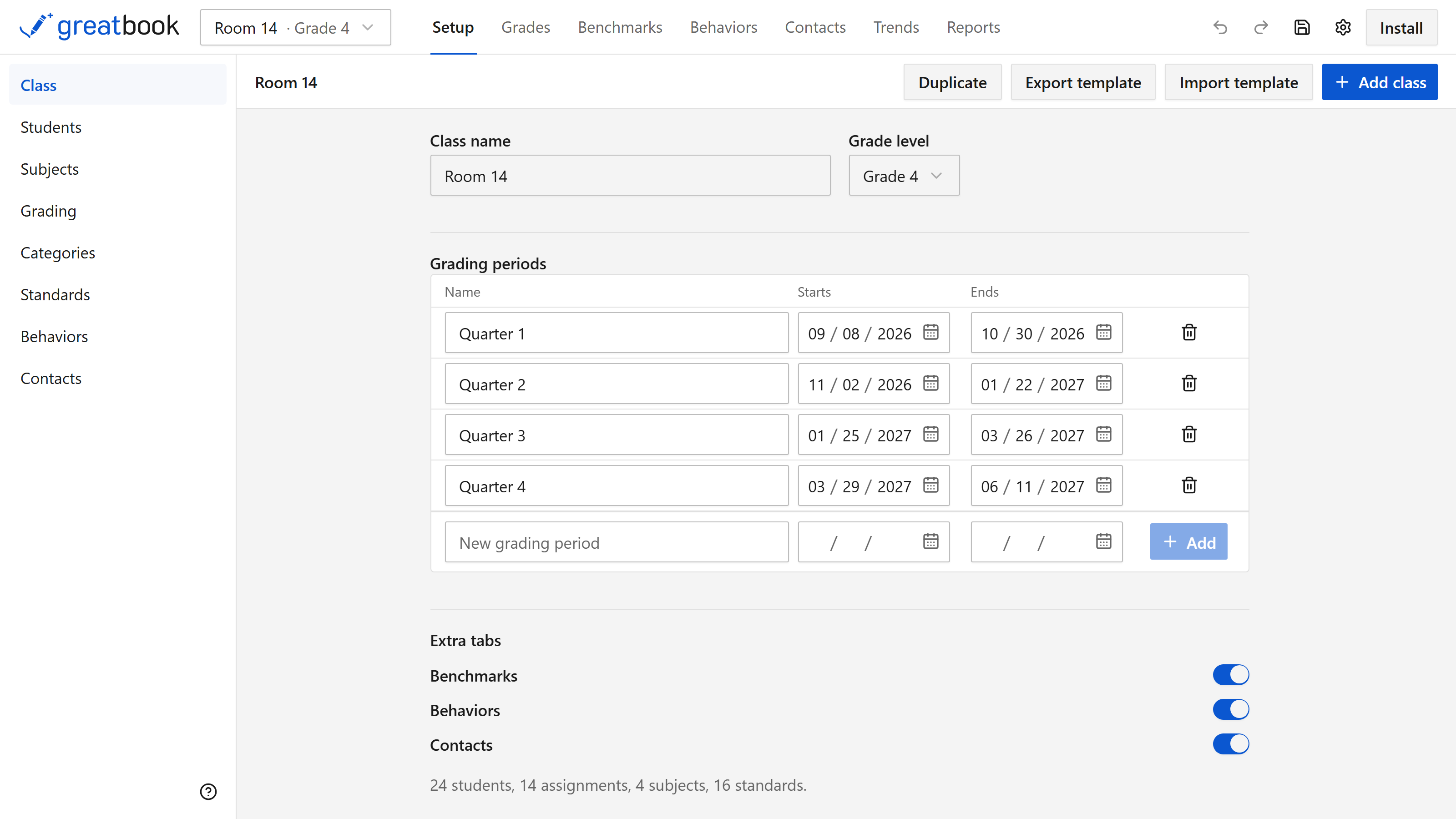
Six panels, down the rail on the left, each covering one part of the class:
- Class is the name, the grade level, and the grading periods the year is divided into. Periods are date ranges and may not overlap. Benchmarks, Behaviors and Contacts are switched on or off for the class here.
- Students is your roster, and you can paste a whole list at once.
- Subjects are the areas you teach, each with a color and a symbol you choose.
- Standards are what you are assessing, each belonging to a subject.
- Categories are the kinds of work you assign — homework, quizzes, projects.
- Grading is what each category is worth, and how levels turn into a course grade.
You can change any of this later; nothing here is locked once the year is under way.
Bringing a class in
Google Classroom. In Classroom, open Classwork, open any assignment, then the gear on the student work page: Download all grades as CSV. That one file holds your roster, your assignments and your marks.
Nothing changes until you press Import. You see what it will do first, and you pick which version wins when a mark in the file clashes with one of yours. It never deletes anything, and you can import the same file again next month to top up what is there.
A template. Open a class saved elsewhere, choosing which parts come with it. That is how you carry a course into next year or hand it to a colleague. Duplicate does the same within this gradebook.
Standards without typing them
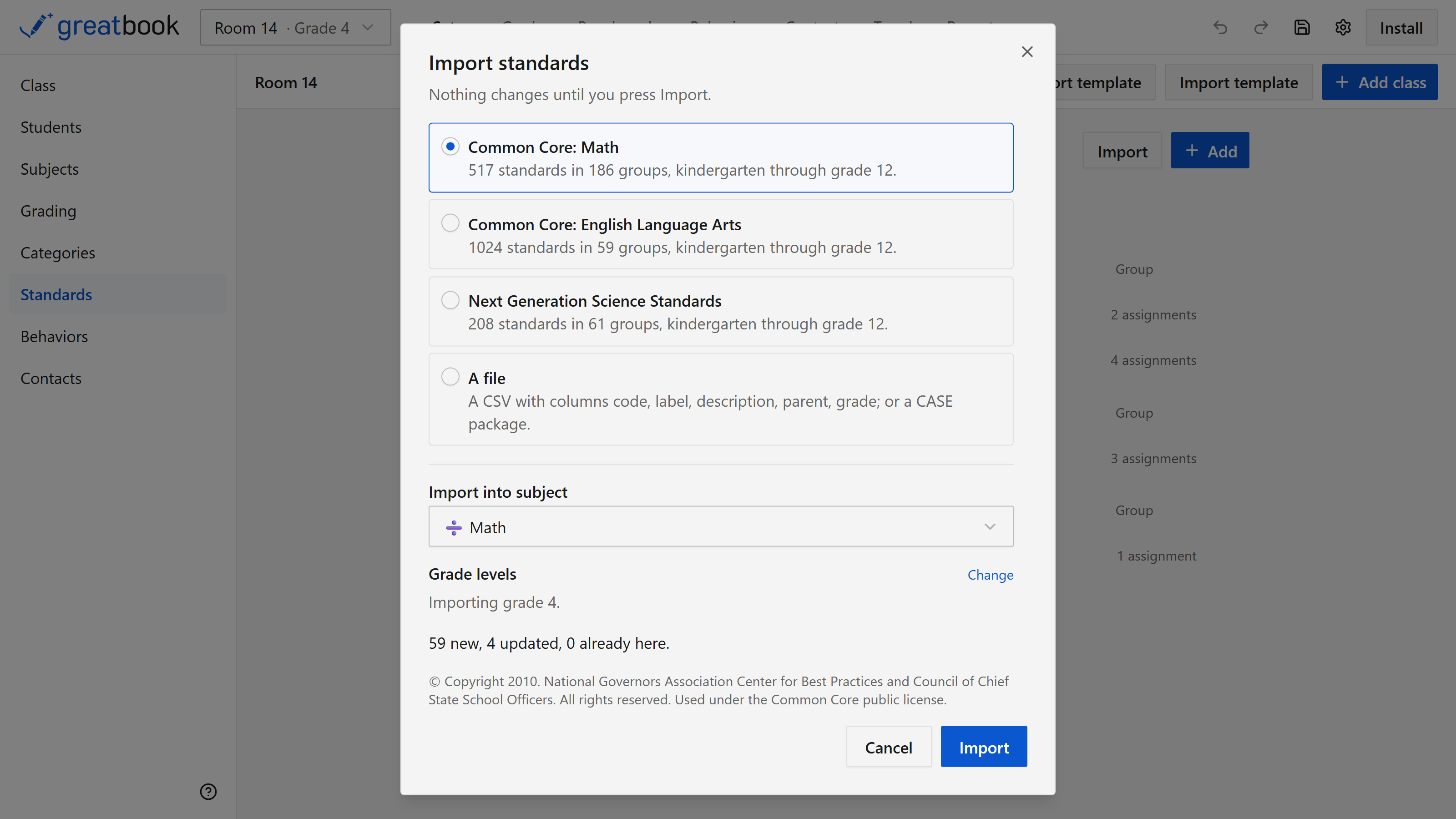
Setup, then Standards, then Import.
Common Core Math, Common Core English Language Arts and the Next Generation Science Standards are included. Each covers kindergarten through grade 12, so narrow it to the grade you teach on the way in.
Your district's own standards can be brought in from a file instead.
Grades
Students down the side, assignments across the top.
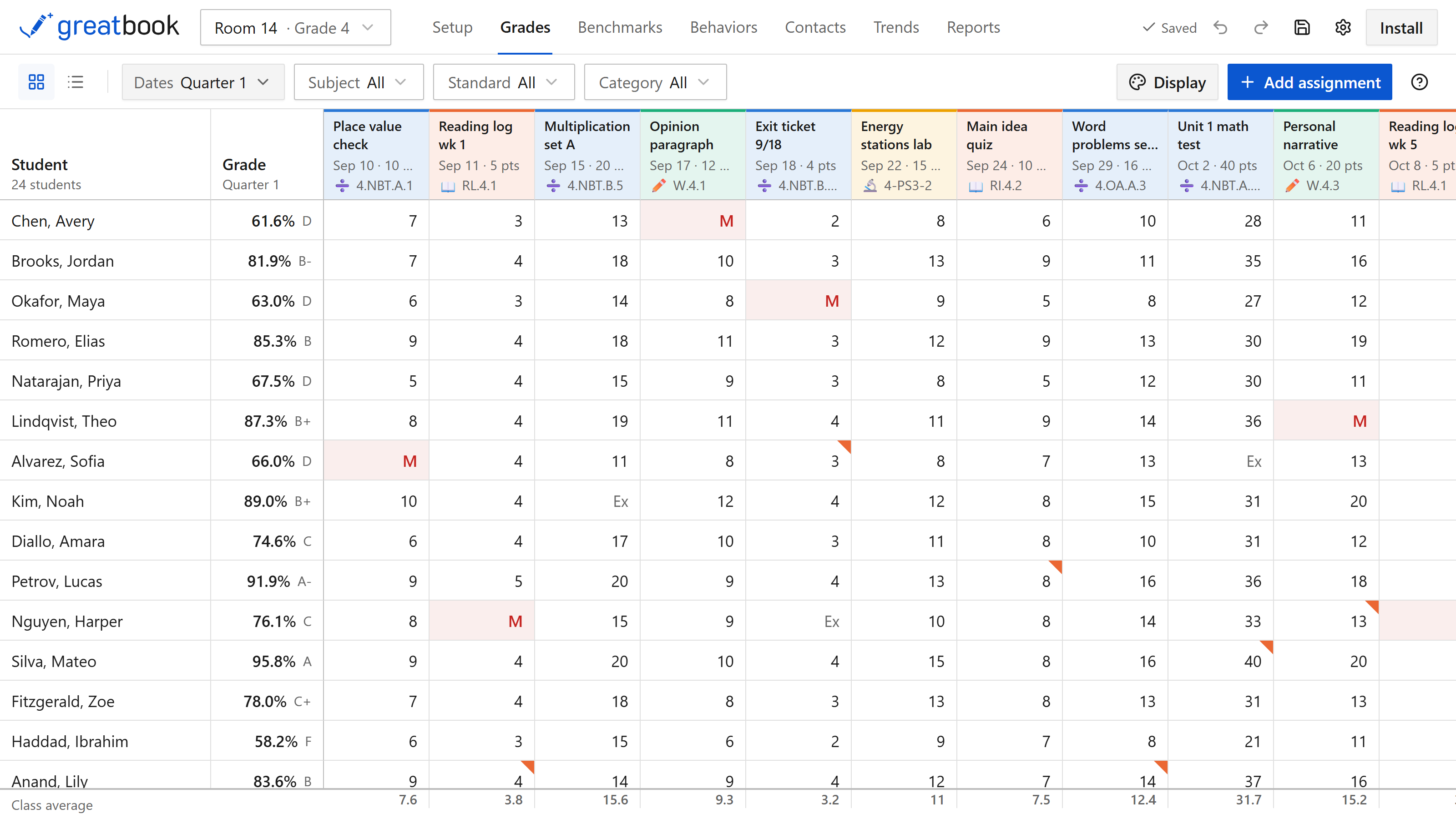
Built to be filled in without a mouse. Arrow keys move, typing enters a score, Enter drops to the next student.
Type m for missing, x to excuse, l after a score for late, Delete to clear. A panel under the cursor says what the cell you are on will accept.
An assignment is scored out of points, as a percent, as a level, or done and not done. It can be extra credit, or left out of the grade.
Right-click a cell to do the same as a menu, or to comment on that one score. Blocks of scores copy and paste, and undo covers it in one step.
Subjects, standards, categories and dates filter the grid. Narrow to one standard and you are looking at the whole class on that one thing. Cells are shaded by how well students did, so a column where the class came unstuck is obvious at a glance.
There is a list layout beside the grid for working on one assignment at a time.
Assignments
An assignment has a name, a category, the standards it assesses, a date and what it is marked out of.
One assignment can cover several standards at once, so a single project can feed three different lines on the report card.
Grading
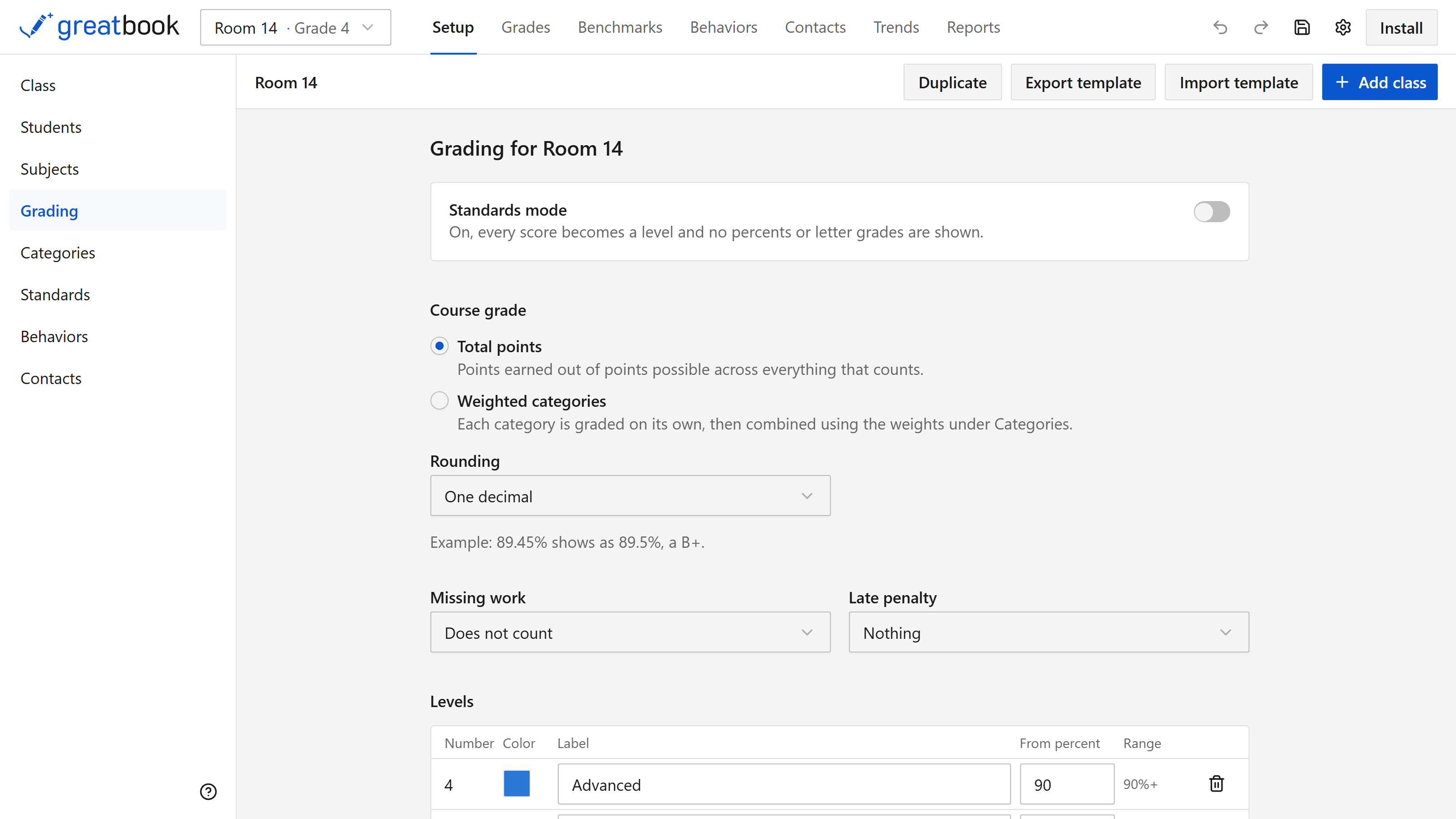
Total points or weighted categories, and you can drop the lowest few scores in a category if you want to.
Missing work counts as zero or does not count. Late work can cost points, a percentage, or nothing. A worked example shows the rule on a real number before a grade depends on it.
Edit the levels and the letter grades yourself. Standards mode turns percentages and letter grades off entirely and marks in levels alone.
Benchmarks
Tests you give a few times a year to see where students are.
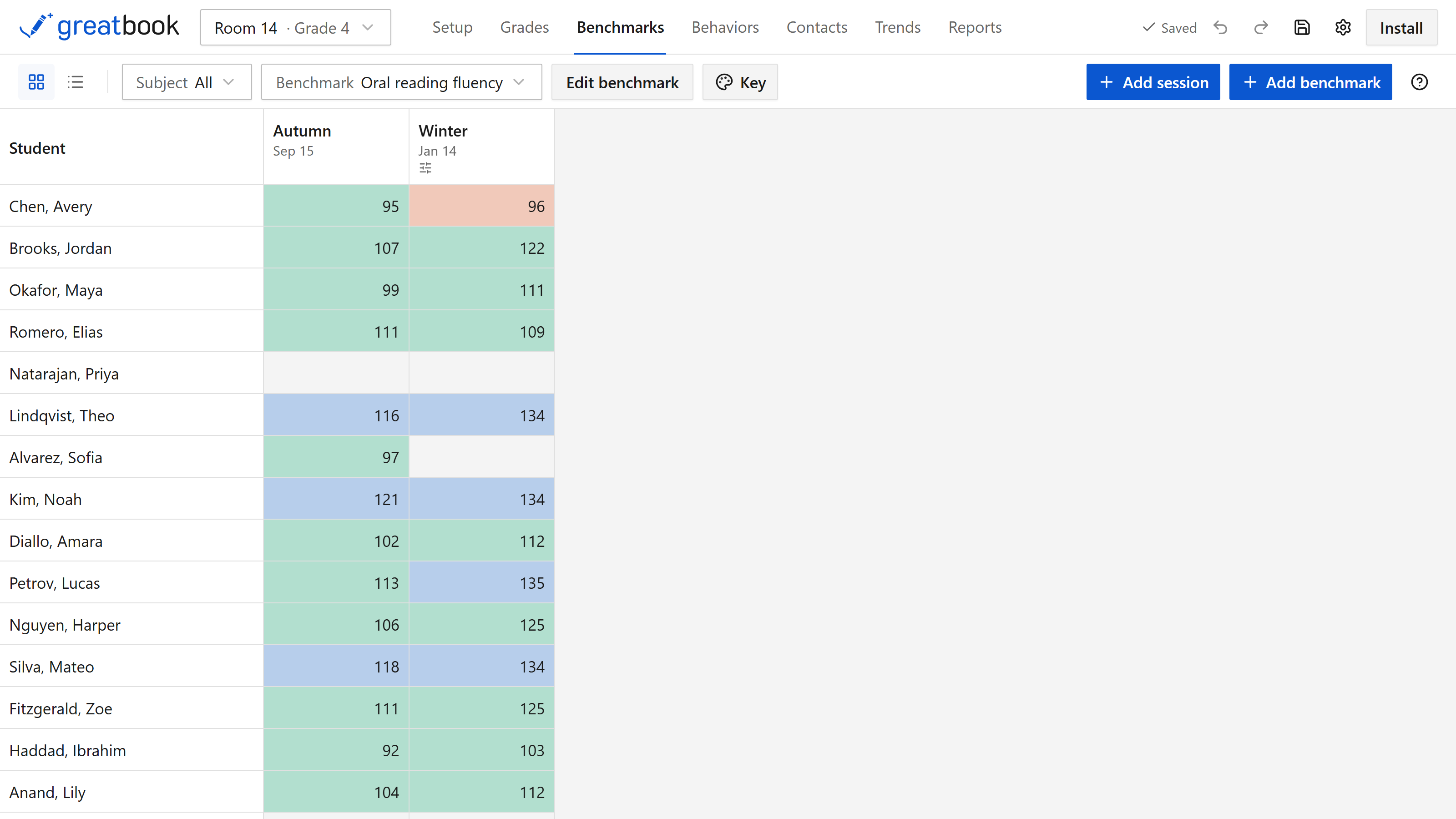
A benchmark is what you measure — oral reading fluency, multiplication facts in two minutes — and a session is one sitting of it.
Set the bands yourself, with a color each, so a raw score reads as approaching or met. Benchmarks stay out of the course grade.
Behaviors
This keeps a record of what happened and when, which is what you need at a conference or for a referral.
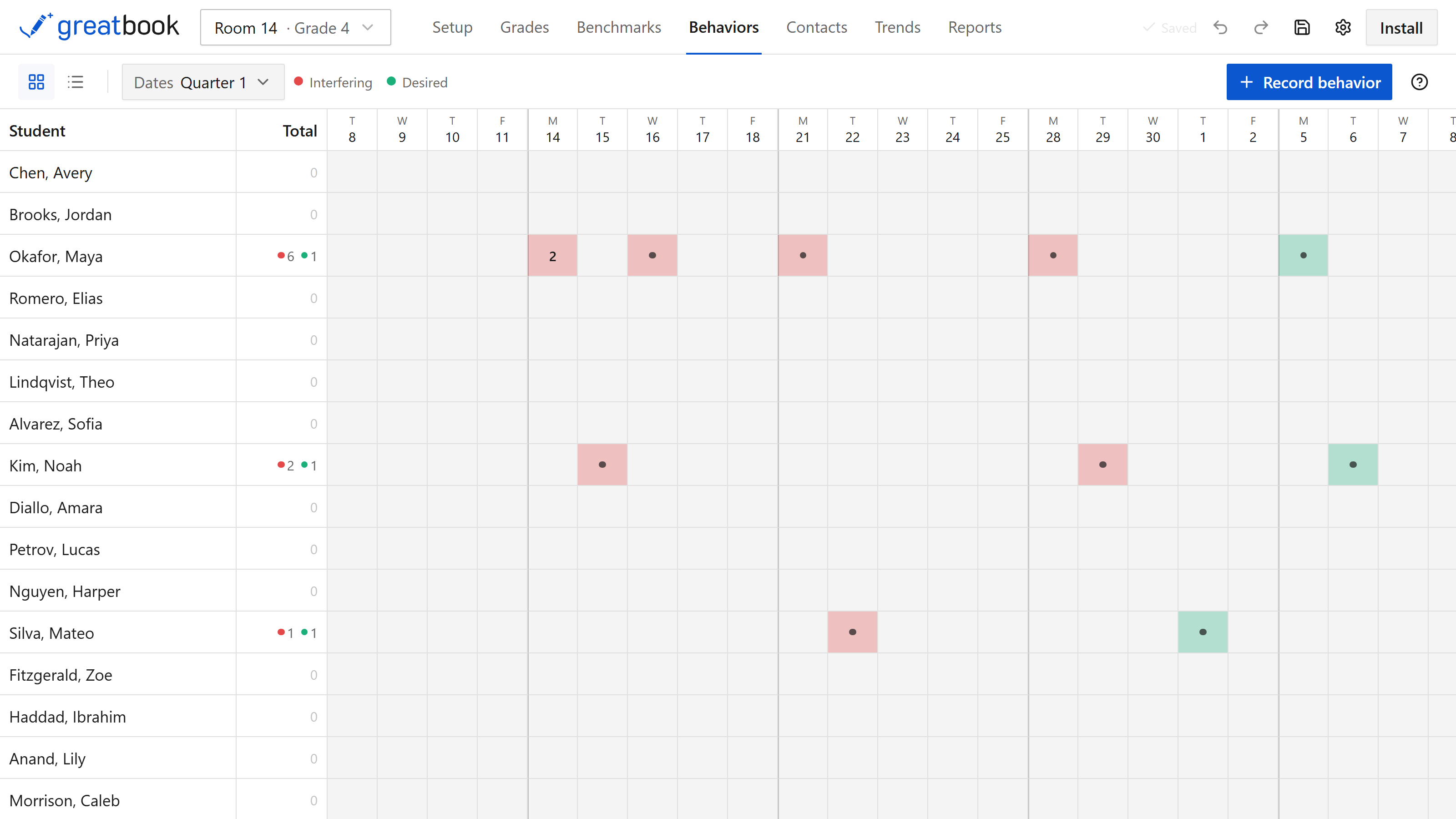
Each record is a student, a day, what happened, and if you want it, what came before and what followed. Setup has a panel for naming the behaviors your school uses.
Contacts
A log of calls and emails home, with a Last column for who you still owe one.
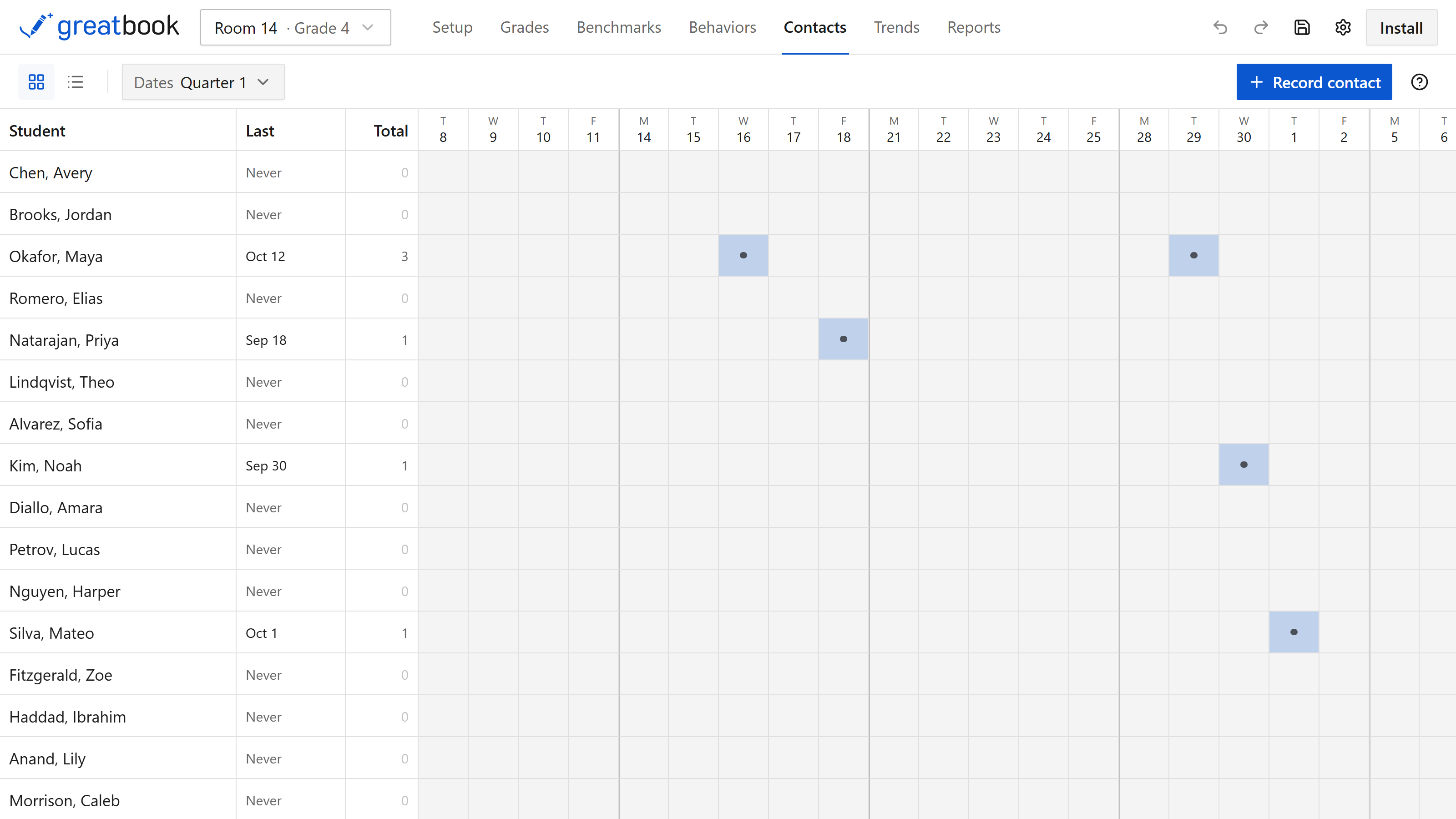
Name the methods yourself in Setup — a phone call, an email, a note sent home.
Trends
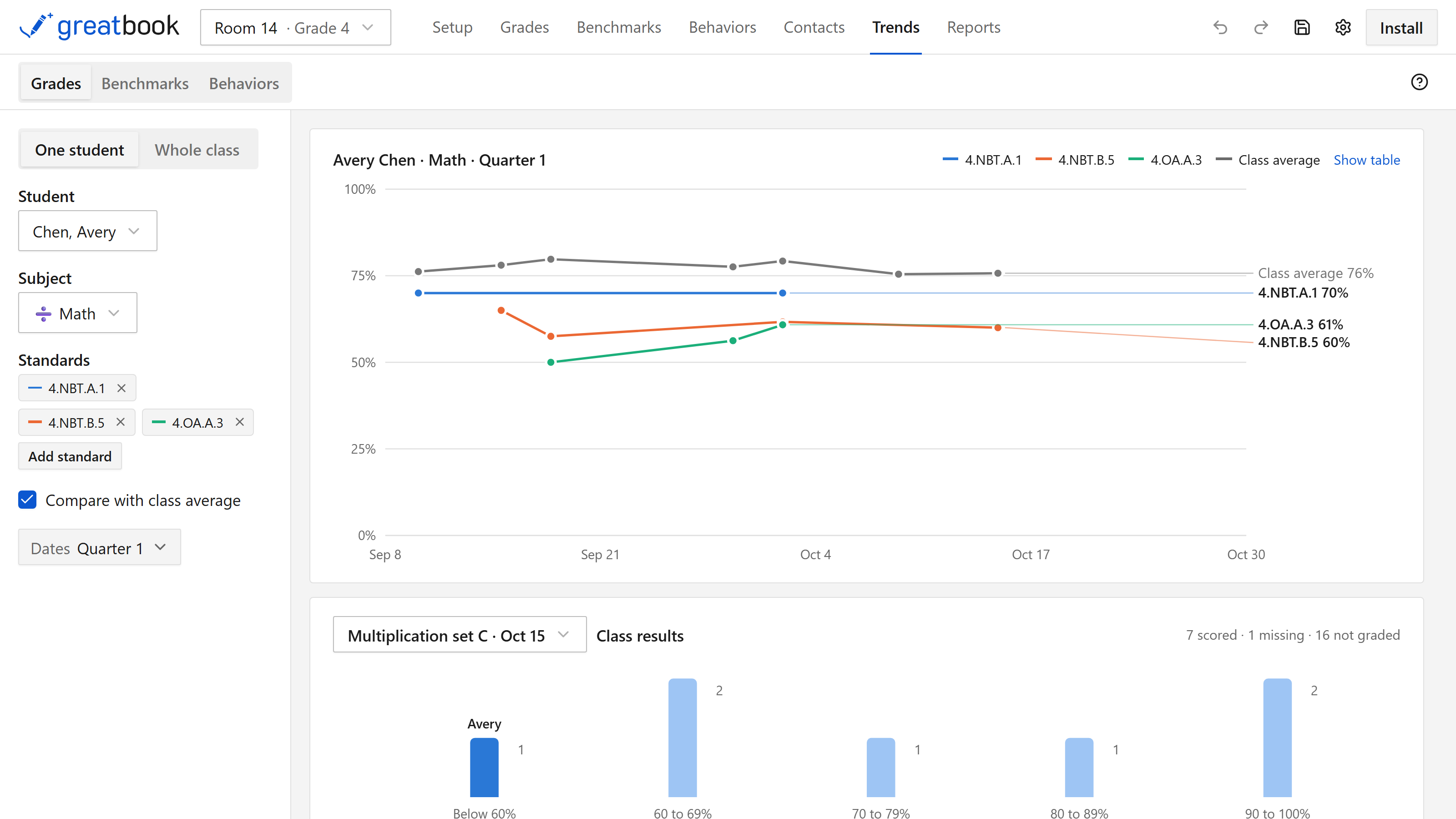
You can draw trends from grades, from benchmarks or from behavior records.
Pick a student and you get their line over time, up to four standards at once, with the class average drawn behind if you want the comparison. Pick the class and you get the same chart, averaged.
Underneath, a histogram shows how the class was spread across a single assignment. Every chart has the numbers under a Show table button.
Reports
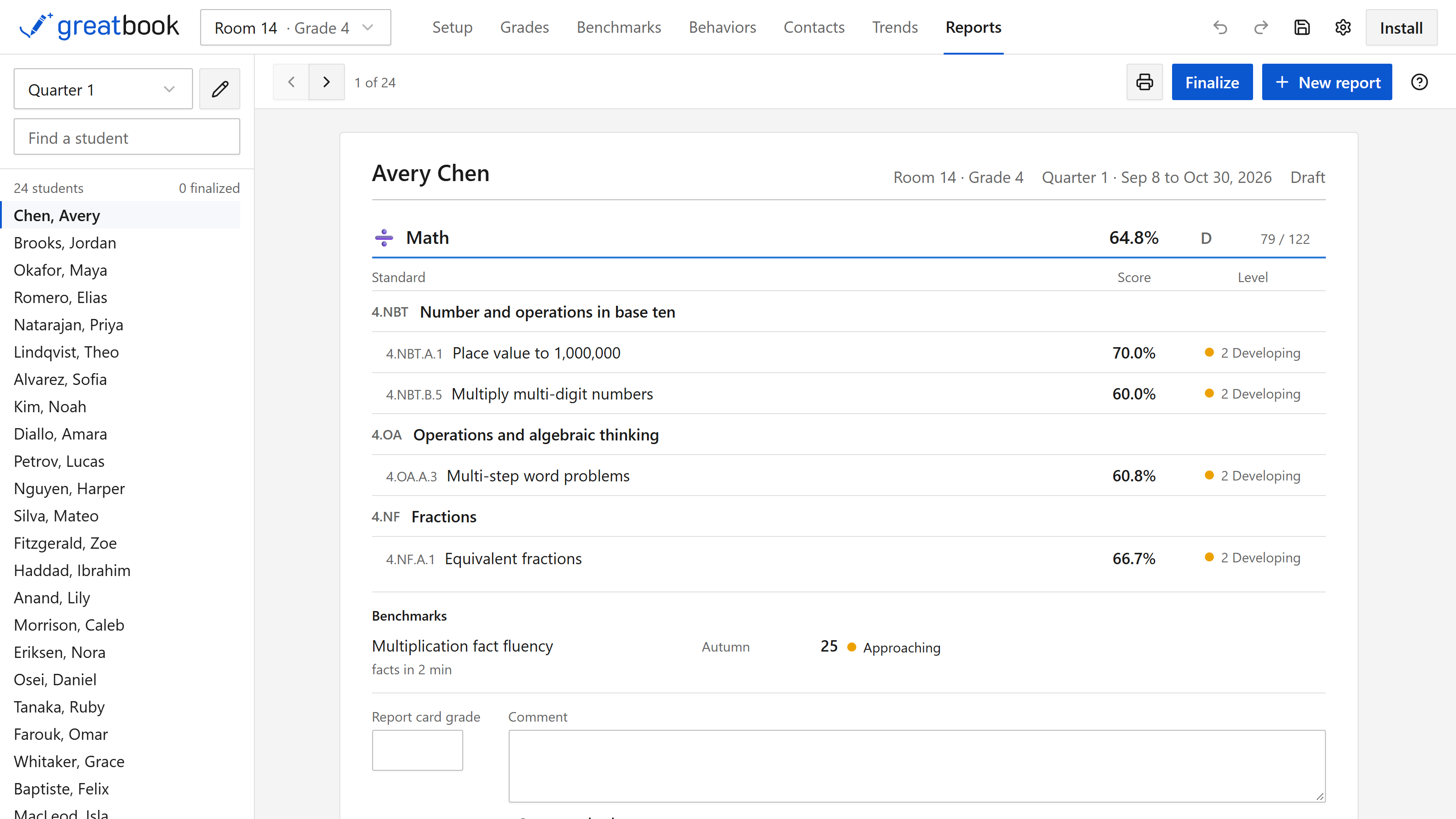
Every student gets a page with the course grade their assignments add up to, and under it how they are doing on each standard.
Then you type in the grade you are actually giving, which the app never calculates for you, plus a comment. Comments you write every term can be saved and dropped in again.
Build as many reports as you like, each covering its own dates, and tick what goes on the card. Make a short one for parents and a fuller one for an IEP meeting.
Open up the category breakdown and you can see each weight, which scores were dropped, and the arithmetic behind the percent.
One button prints them, laid out for paper, with ruled lines for a signature and a date. Finalize a card and its grades are frozen, so entering a late assignment next week will not change what you already sent home. You can reopen it whenever you want.
Trying it first
Choose Try a sample class on the first screen.
It fills the app with invented students and their work, so every screen has something in it. When you close it, the sample class goes away, and it is never mixed in with a real class of yours.